
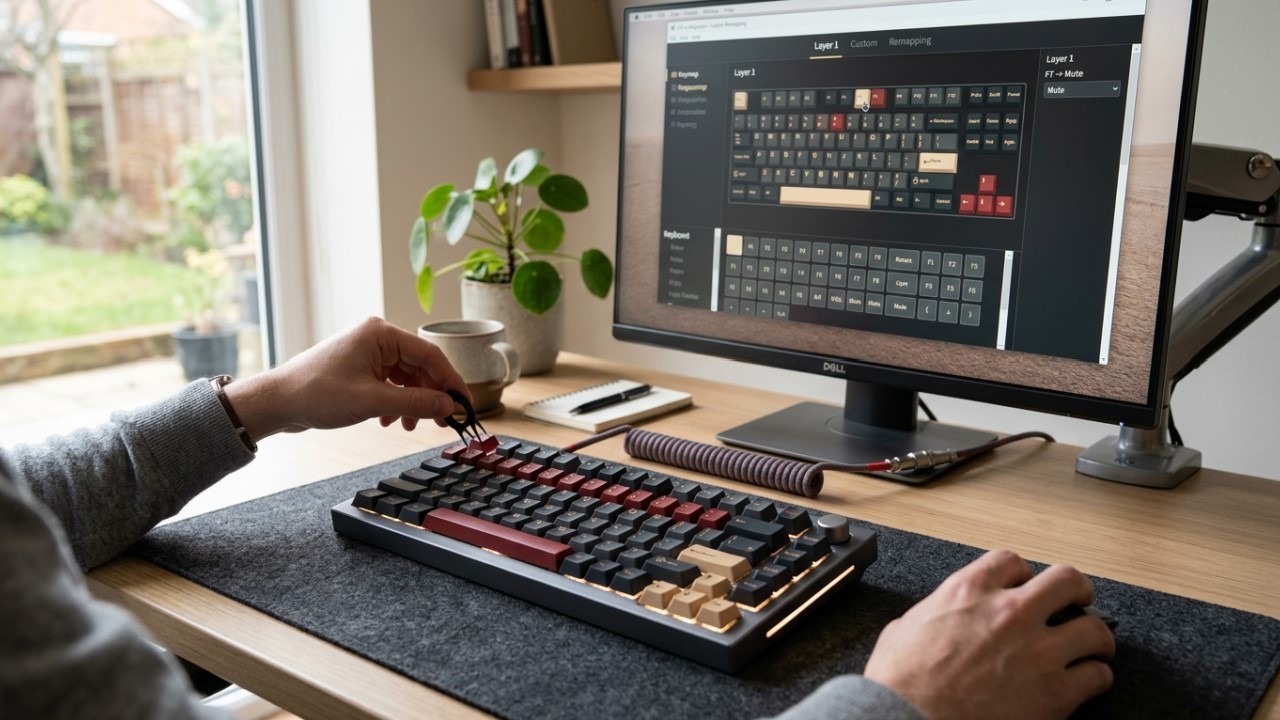
Average typing speed for office workers sits around 40 words per minute, yet research shows that optimized keyboard layouts and input prediction tools can raise speed and reduce fatigue during long typing sessions.
That difference becomes noticeable during daily work. A few small changes can turn typing from a repetitive task into a smoother, more controlled activity.
Many people accept their keyboard exactly as it arrives from the factory. Default layouts rarely match personal habits, hand size, or typing style.
Customization helps solve that problem. Better spacing, smarter shortcuts, and improved prediction tools allow fingers to move naturally.
A thoughtful setup improves speed and comfort at the same time. Small improvements in layout, software settings, and typing workflow gradually add up.
Over time the keyboard becomes a tool that adapts to the user rather than the opposite.
Understanding What Actually Slows Down Typing
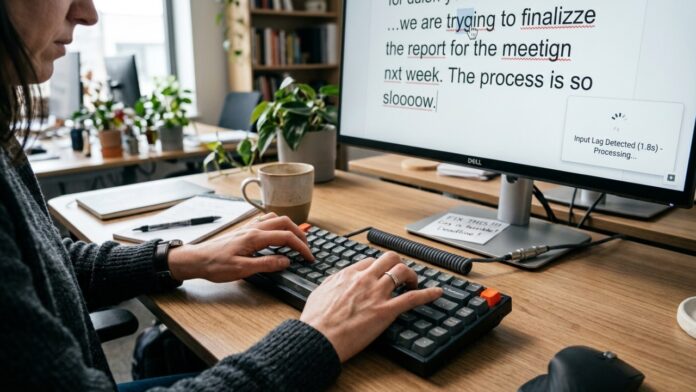
Before changing keyboard settings, it helps to identify where speed drops during normal typing. Many people assume slow typing comes from finger speed alone. Real causes often sit elsewhere.
Keyboard friction appears in several forms. Key travel distance, weak prediction tools, and poorly placed shortcuts often create unnecessary pauses.
Mental interruption also plays a role when the user constantly corrects spelling or switches languages.
Several common obstacles appear in everyday typing.
- Many default keyboards place frequently used symbols far from the home row, which forces unnecessary hand movement.
- Predictive typing tools may be disabled, meaning every word must be typed manually.
- Poor key spacing can lead to constant corrections that break writing flow.
- Software lag or input delay interrupts rhythm during long typing sessions.
Once these slow points become clear, the next steps become easier. Each adjustment targets one small barrier that reduces efficiency.
Choosing a Smarter Input Method
Software plays a major role in keyboard performance. Hardware receives most attention, yet modern input tools often create the biggest improvement in speed.
Advanced typing engines learn patterns, anticipate words, and reduce repetitive typing. When prediction tools work well, fingers spend less time correcting mistakes and more time moving forward with the text.
Many users who write in multiple languages or switch between messaging and long documents benefit from intelligent input methods. Systems that learn phrases and personal vocabulary create a smoother typing experience.
For example, Sogou AI engine can anticipate your every thought. A quick reply or a lengthy piece becomes easier since the system accurately captures expressive intent, making typing far more efficient. For PC there is 搜狗输入法电脑版下载 (Sogou input method PC version download) system.
Adjusting Key Layout for Natural Hand Movement
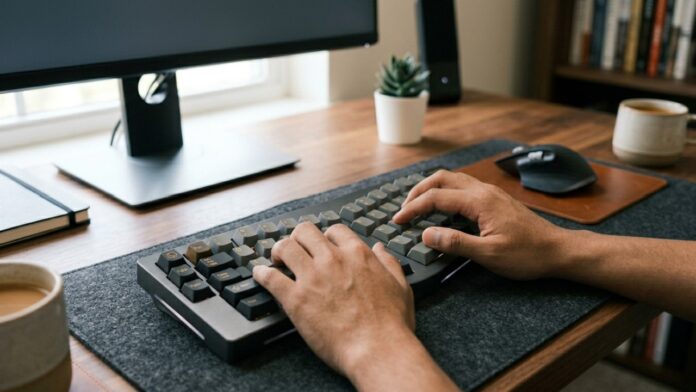
Keyboard layout influences comfort more than most people realize. Traditional QWERTY layouts date back to mechanical typewriters. Modern keyboards allow more flexibility.
A comfortable layout keeps fingers near the home row and reduces stretching. Programmable keyboards and layout software allow users to move frequently used keys closer to the strongest fingers.
Three simple adjustments often produce noticeable improvements:
- Moving symbols like parentheses or brackets closer to the home row reduces awkward hand stretching during writing or coding.
- Assigning rarely used keys to macros can remove repetitive actions such as inserting email signatures or templates.
- Enabling alternate layouts like Colemak or optimized variants can reduce total finger travel during typing.
Layout changes may feel strange during the first few days. Muscle memory gradually adapts, and many users report faster typing after two or three weeks of consistent practice.
Mechanical vs Low Profile Keyboards
Hardware still matters when comfort becomes a priority. Different keyboard designs produce different levels of resistance and travel distance.
The comparison below highlights typical characteristics.
| Keyboard Type | Key Travel | Noise Level | Typing Feel | Best For |
| Mechanical | Medium to long | Moderate to loud | Tactile feedback | Long typing sessions |
| Low profile | Short | Quiet | Fast key response | Office environments |
| Membrane | Soft | Quiet | Minimal feedback | Casual use |
Mechanical switches often reduce typing errors because the user feels when a key activates. Low profile keyboards support faster finger movement with less vertical travel.
Choice depends on personal comfort and environment. Quiet spaces may benefit from softer switches while dedicated workstations often support mechanical keyboards without issue.
Smart Shortcuts Reduce Repetitive Work
Keyboard customization becomes powerful when shortcuts replace repeated actions. Many daily tasks involve the same sequence of commands. Automating those steps saves time.
Productivity software allows users to assign key combinations to specific actions. Document formatting, navigation, and file management become faster once shortcuts replace mouse movement.
A few commonly useful shortcut categories include the following:
- Text formatting commands such as bold, headings, and bullet lists
- Navigation shortcuts for switching applications or browser tabs
- Automated text expansion for email templates or signatures
- Quick clipboard management for copying multiple pieces of text
Shortcuts reduce interruptions and maintain writing rhythm.
Improving Comfort Through Ergonomic Positioning
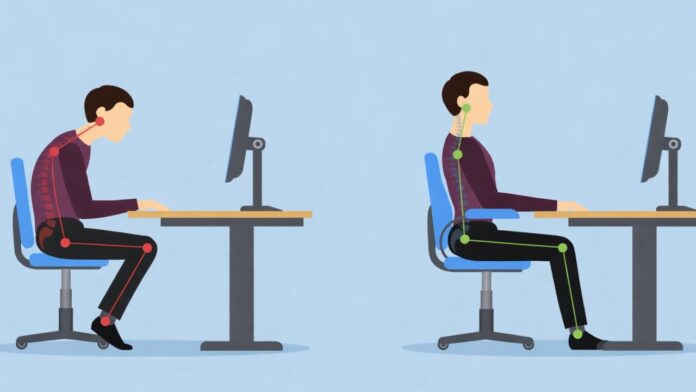
Speed matters, yet comfort determines how long someone can type without fatigue. Ergonomic adjustments protect wrists and shoulders during extended work sessions.
Keyboard position often causes strain when placed too high or too far from the body. Small changes create noticeable relief.
A practical ergonomic setup usually includes several adjustments:
- Keyboard placed at elbow height so wrists remain straight while typing
- Slight tilt that supports a natural hand angle rather than bending the wrist
- A soft wrist rest that reduces pressure during pauses between sentences
- Screen height adjusted so the neck remains upright while typing
Comfort directly influences typing consistency. Reduced strain allows fingers to maintain rhythm during long writing tasks or coding sessions.
Typing Rhythm Matters More Than Raw Speed
Did you know that consistent rhythm often produces faster writing than aggressive typing speed. Many professional typists maintain steady pacing rather than racing across the keyboard.
Rhythm allows the brain to stay focused on ideas instead of constant correction. Pauses for thinking, reviewing sentences, and adjusting phrasing become smoother.
A few habits help develop better typing rhythm.
- Reading sentences mentally before typing reduces mid sentence corrections.
- Keeping both hands active prevents overloading one side of the keyboard.
- Avoiding excessive backspacing helps maintain flow during drafting.
Small Customizations Lead to Big Improvements
Keyboard customization does not require expensive equipment or technical expertise. A few thoughtful adjustments often create major improvements in typing comfort and efficiency.
Better input software, smarter layouts, ergonomic positioning, and shortcut automation each remove small obstacles from daily typing. Each improvement reduces friction between ideas and the screen.
Typing becomes faster when tools adapt to personal habits. Control increases when repetitive actions disappear. Comfort improves when the keyboard supports natural hand movement.
Gradual experimentation works best. Try one change at a time and observe how it affects daily workflow. Within a few weeks many users notice that writing feels smoother, faster, and far less tiring.