
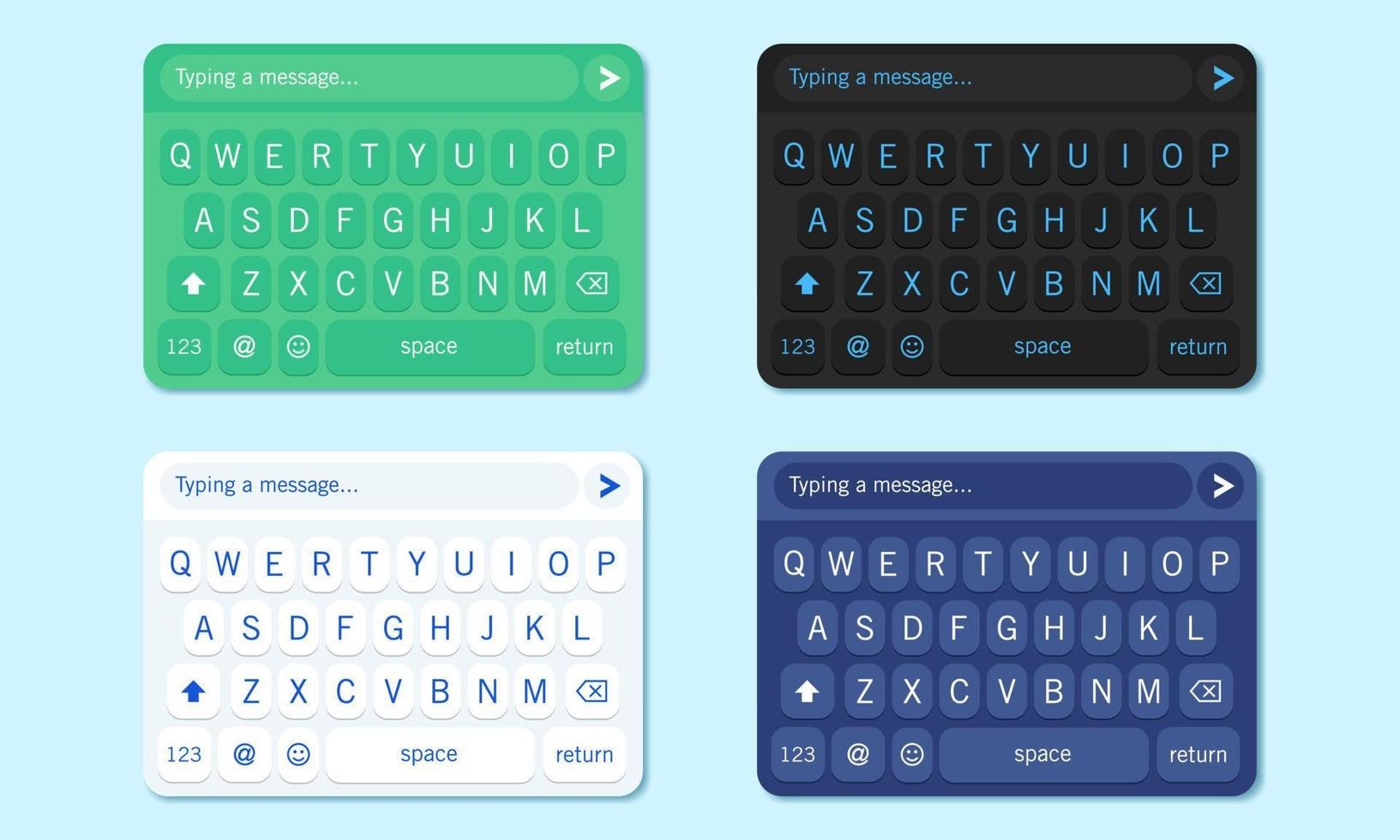
A recent report from Statista noted that the average smartphone user taps their keyboard thousands of times every day. Messages, searches, emails, quick notes, social posts, shopping lists. Typing has quietly become one of the most repeated actions on any device. Yet many people still use the same default keyboard appearance that came with their phone.
That default layout works, but it rarely feels personal. A thoughtfully designed keyboard theme can change how typing feels. Colors improve readability. Key shapes guide your fingers faster. Sound and vibration settings add a subtle sense of feedback.
Learning how to customize keyboard themes for a better typing experience is not only about aesthetics. Small adjustments can improve speed, reduce errors, and make everyday typing more comfortable.
The process is simple once you understand which elements actually matter and how to adjust them without creating visual clutter.
Why keyboard themes influence typing comfort
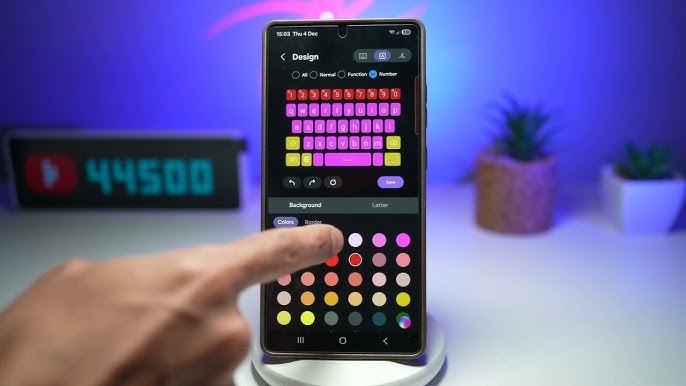
Keyboard design directly affects how quickly your eyes locate keys and how easily your fingers recognize them. When colors blend together or keys feel cramped, typing slows down even if you do not consciously notice it.
Custom keyboard themes help solve several common issues that appear with default layouts. Most systems allow users to modify several visual and functional elements:
- Background color and contrast between keys and letters
• Key shape and spacing
• Font style and size on the keys
• Animation, sound, and vibration feedback
• Dark mode or light mode visibility
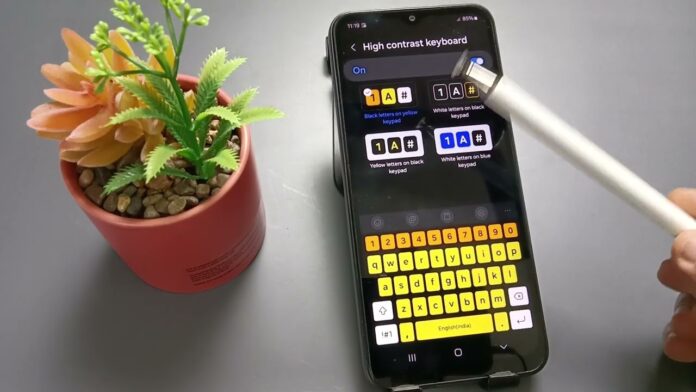
Improving these small details can noticeably change typing accuracy. A darker background with brighter letters, for example, helps many people reduce typing mistakes during night use.
Good keyboard customization focuses on clarity first and decoration second. When the design remains simple and readable, fingers start to move faster without conscious effort.
Choosing the right keyboard app before customizing
Before adjusting colors or layouts, the first step is choosing a keyboard app that actually supports deeper customization. Many built in keyboards offer only a few theme options. Third party keyboards often provide advanced tools, predictive typing improvements, and theme editors.
Several well known keyboards allow detailed theme personalization, but some focus strongly on typing efficiency as well.
A strong example is Sogou. Production increases as the words are delivered much faster and with no mistakes so there is no need to adjust anything later on. The AI engine predicts text intelligently.
It adapts to how a person writes and helps complete phrases naturally. Quick replies become effortless. Longer writing also feels smooth since the keyboard captures expressive intent with impressive accuracy.
Reliable keyboard apps typically include the following customization tools.
Key customization features to look for
- Large theme libraries with editable colors
• Adjustable key size and spacing
• Predictive text improvements
• Gesture typing support
• Personal dictionary learning
Choosing a flexible keyboard platform makes theme customization much easier later.
Visual customization that improves readability
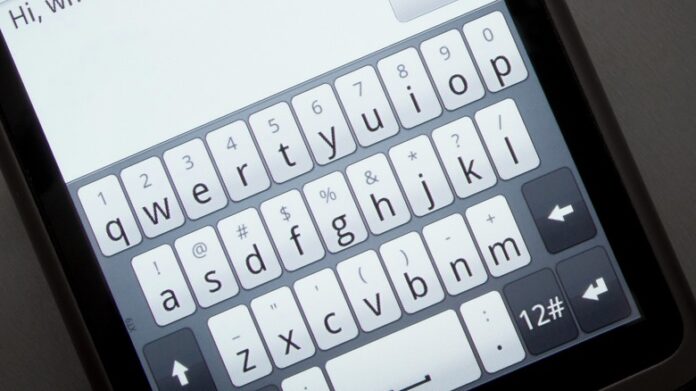
Visual design often gets treated as decoration, but it plays a practical role in typing efficiency. Strong contrast and clear spacing reduce eye strain and allow faster recognition of letters.
When learning how to customize keyboard themes for a better typing experience, start with readability rather than style.
A few visual adjustments make a noticeable difference.
- Increase contrast between key background and letter color
• Avoid very bright backgrounds that reduce letter clarity
• Use larger fonts if small letters cause mistakes
• Select softer colors for long typing sessions
Another small trick helps many users. Choose a theme where frequently used keys such as space, enter, and delete stand out slightly from the rest of the keyboard. Fingers identify them faster without searching.
Simple visual balance often works better than complex artistic themes. Decorative keyboards may look attractive in screenshots but can slow down real typing.
Functional keyboard settings that affect speed
Theme customization is not only visual. Many keyboards allow users to adjust functional elements that directly affect typing rhythm.
The table below summarizes common settings and how they influence typing performance.
| Setting | Effect on typing |
|---|---|
| Key height | Larger keys improve accuracy |
| Key spacing | Wider spacing reduces accidental taps |
| Vibration feedback | Helps fingers recognize key presses |
| Sound feedback | Confirms typing rhythm |
| Gesture typing | Allows faster word input |
After choosing preferred settings, spend a few days typing normally before adjusting again. Fingers adapt gradually to layout changes.
Users who regularly write long messages often benefit from slightly larger keys and moderate vibration feedback. Short message users sometimes prefer compact layouts to reduce finger travel distance.
Small experiments lead to the best results.
Small details that improve the experience
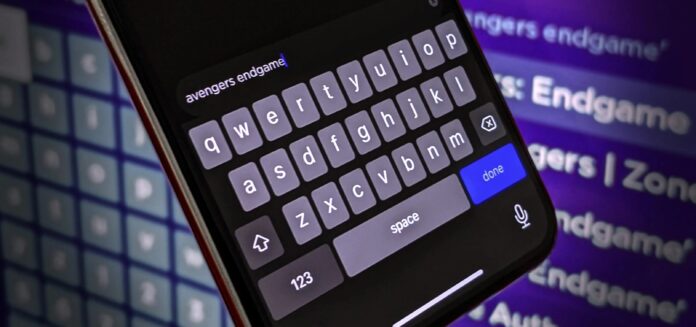
Beyond color and layout, several small adjustments can refine the overall typing experience.
Most people overlook these details, yet they influence comfort during daily use.
- Enable adaptive prediction so the keyboard learns common phrases
• Adjust long press timing to match your typing style
• Use a darker theme during evening hours to reduce eye strain
• Turn off unnecessary animations that slow visual response
Fact
Research from the Human Computer Interaction Institute at Carnegie Mellon University shows that visual clarity and feedback timing both affect typing accuracy on touchscreen keyboards.
Consistency is another important factor. Once a theme feels comfortable, avoid frequent switching. Fingers rely on muscle memory. Repeated design changes interrupt that rhythm and slow typing.
Stable visual cues allow the brain to recognize keys faster without conscious attention.
Making your keyboard truly personal
Personalization is where keyboard themes become more enjoyable. Once readability and functionality feel right, users can experiment with more stylistic choices.
Some people prefer minimal dark keyboards with subtle highlights. Others enjoy colorful themes or even photo backgrounds.
A few creative options appear in many modern keyboard apps.
- Gradient color keyboards
• Transparent background styles
• Seasonal theme collections
• Custom uploaded images
Balance remains important here. Busy backgrounds often make letters harder to read. Choosing a simple image with low contrast behind the keys usually works best.
Personal touches such as favorite colors or subtle patterns help make the keyboard feel like a natural extension of the device rather than a generic tool.
Final thoughts
Typing occupies a surprisingly large portion of everyday device use. Messages, notes, reminders, and conversations all depend on the keyboard. Yet many people never adjust it beyond the default theme.
Learning how to customize keyboard themes for a better typing experience brings both comfort and efficiency. Clearer colors reduce visual strain. Better key spacing improves accuracy. Predictive typing tools speed up communication without effort.
Choosing a capable keyboard platform first makes customization easier. Careful adjustments to contrast, feedback settings, and layout allow the keyboard to match personal habits.